用户定义类型
用户定义类型
在C++中,关键词typedef允许创建用户定义数据类型。 因此,只需为现有的数据类型指定一个新的数据类型名称即可。不可以创建新的数据类型。而是用现有类型的新名称来替代。用户定义类型可以使应用程序更具灵活性:有时,使用替换宏(#define)就足以改变 typedef 指令。用户定义类型还可以提高代码的可读性,因为可以使用typedef将自定义名称应用于标准数据类型。创建用户类型条目的一般格式:
typedef type new_name;在这里,type 表示任何可接受的数据类型,而new_name是该类型的新名称。设置的新名称只能作为现有类型名称的补充(而不能替换它)。MQL5 允许使用typedef创建函数指针。
函数指针
函数指针通常根据以下格式定义
typedef function_result_type (*Function_name_type)(list_of_input_parameters_types);typedef之后,设置函数签名(输入参数的数字和类型,以及函数返回结果的类型)。下面就是创建和应用函数指针的简单示例:
//--- 声明接受两种int参数的函数指针
   typedef int (*TFunc)(int,int);
//--- TFunc 是一种类型,可以声明变量函数指针
   TFunc func_ptr; // pointer to the function
//--- 声明符合TFunc 描述的函数
   int sub(int x,int y) { return(x-y); }  // 从一个数减去一个数
   int add(int x,int y) { return(x+y); }  // 两个数字相加
   int neg(int x)       { return(~x);  }  // 逆位变量
//--- func_ptr 变量可以存储函数地址以便稍后声明
   func_ptr=sub;
   Print(func_ptr(10,5));
   func_ptr=add;
   Print(func_ptr(10,5));
   func_ptr=neg;           // 错误:neg 没有 int (int,int) 类型
   Print(func_ptr(10));    // 错误:需要两个参数
在该示例中,func_ptr变量可以接收sub和add函数,因为它们具有如TFunc函数指针定义的每个int类型的两个输入参数。 相反,因为签名不同,所以neg函数不可以安排到func_ptr指针。
在用户界面安排事件模式
函数指针允许您创建用户界面时轻松创建事件处理。让我们通过CButton版块的示例来说明如何创建按键和添加函数来处理它们。首先,定义一个通过按下按键来调用的TAction函数并根据TAction描述创建三个函数。
//--- 创建一个自定义函数类型
typedef int(*TAction)(string,int);
//+------------------------------------------------------------------+
//|  打开文件                                                         |
//+------------------------------------------------------------------+
int Open(string name,int id)
  {
   PrintFormat("%s function called (name=%s id=%d)",__FUNCTION__,name,id);
   return(1);
  }
//+------------------------------------------------------------------+
//|  保存文件                                                         |
//+------------------------------------------------------------------+
int Save(string name,int id)
  {
   PrintFormat("%s function called (name=%s id=%d)",__FUNCTION__,name,id);
   return(2);
  }
//+------------------------------------------------------------------+
//|  关闭文件                                                         |
//+------------------------------------------------------------------+
int Close(string name,int id)
  {
   PrintFormat("%s function called (name=%s id=%d)",__FUNCTION__,name,id);
   return(3);
}然后,创建来自CButton的MyButton类,在这里我们应该添加TAction函数指针。
//+------------------------------------------------------------------+
//| 通过事件处理函数创建按键类                                           |
//+------------------------------------------------------------------+
class MyButton: public CButton
  {
private:
   TAction           m_action;                    // 图表事件处理程序
public:
                     MyButton(void){}
                    ~MyButton(void){}
   //--- 构造函数指定按键文本和事件处理函数指针
                     MyButton(string text, TAction act)
     {
      Text(text);
      m_action=act;
     }
   //--- 设置OnEvent()事件处理程序调用的自定义函数
   void              SetAction(TAction act){m_action=act;}
   //--- 标准图表事件处理程序
   virtual bool      OnEvent(const int id,const long &lparam,const double &dparam,const string &sparam) override
     {
      if(m_action!=NULL && lparam==Id())
        {
         //--- 调用自定义 m_action() 处理程序
         m_action(sparam,(int)lparam);
         return(true);
        }
      else
      //--- 返回调用CButton父类处理程序的结果
         return(CButton::OnEvent(id,lparam,dparam,sparam));
     }
};创建来自CAppDialog的CControlsDialog衍生类,为其添加m_buttons数组来存储MyButton类型的按键,以及 AddButton(MyButton &button) 和CreateButtons() 方法。
//+------------------------------------------------------------------+
//| CControlsDialog 类                                                |
//| 目标:管理应用程序的图形面板                                          |
//+------------------------------------------------------------------+
class CControlsDialog : public CAppDialog
  {
private:
   CArrayObj         m_buttons;                     // 按键数组
public:
                     CControlsDialog(void){};
                    ~CControlsDialog(void){};
   //--- 创建
   virtual bool      Create(const long chart,const string name,const int subwin,const int x1,const int y1,const int x2,const int y2) override;
   //--- 添加按键
   bool              AddButton(MyButton &button){return(m_buttons.Add(GetPointer(button)));m_buttons.Sort();};
protected:
   //--- 创建按键
   bool              CreateButtons(void);
  };
//+------------------------------------------------------------------+
//| 在图表上创建CControlsDialog 对象                                   |
//+------------------------------------------------------------------+
bool CControlsDialog::Create(const long chart,const string name,const int subwin,const int x1,const int y1,const int x2,const int y2)
  {
   if(!CAppDialog::Create(chart,name,subwin,x1,y1,x2,y2))
      return(false);
   return(CreateButtons());
//---
  }
//+------------------------------------------------------------------+
//| 定义                                                              |
//+------------------------------------------------------------------+
//--- 缩进和间隔
#define INDENT_LEFT                         (11)      // 从左缩进(预留边框宽度)
#define INDENT_TOP                          (11)      // 从上缩进(预留边框宽度)
#define CONTROLS_GAP_X                      (5)       // X坐标间隔
#define CONTROLS_GAP_Y                      (5)       // Y坐标间隔
//--- 按键
#define BUTTON_WIDTH                        (100)     // X坐标大小
#define BUTTON_HEIGHT                       (20)      // Y坐标大小
//--- 显示区域
#define EDIT_HEIGHT                         (20)      // Y坐标大小
//+------------------------------------------------------------------+
//| 创建和添加按键到CControlsDialog面板                                 |
//+------------------------------------------------------------------+
bool CControlsDialog::CreateButtons(void)
  {
//--- 计算按键坐标
   int x1=INDENT_LEFT;
   int y1=INDENT_TOP+(EDIT_HEIGHT+CONTROLS_GAP_Y);
   int x2;
   int y2=y1+BUTTON_HEIGHT;
//--- 添加带有函数指针的按键对象
   AddButton(new MyButton("Open",Open));
   AddButton(new MyButton("Save",::Save));
   AddButton(new MyButton("Close",Close));
//--- 创建图形按键
   for(int i=0;i<m_buttons.Total();i++)
     {
      MyButton *b=(MyButton*)m_buttons.At(i);
      x1=INDENT_LEFT+i*(BUTTON_WIDTH+CONTROLS_GAP_X);
      x2=x1+BUTTON_WIDTH;
      if(!b.Create(m_chart_id,m_name+"bt"+b.Text(),m_subwin,x1,y1,x2,y2))
        {
         PrintFormat("Failed to create button %s %d",b.Text(),i);
         return(false);
        }
      //--- 添加每个按键到CControlsDialog 集合
      if(!Add(b))
         return(false);
     }
//--- 成功
   return(true);
  }
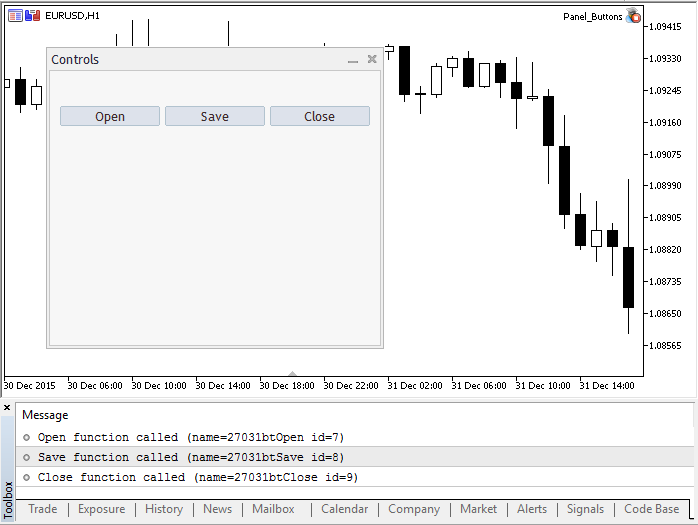
现在,我们可以使用包括3个按键(打开,保存和关闭)的CControlsDialog控制面板开发程序。当点击按键时,以TAction指针形式调用合适的函数。
//--- 声明全局对象以便在启动程序时自动创建
CControlsDialog MyDialog;
//+------------------------------------------------------------------+
//| EA交易初始化函数                                                   |
//+------------------------------------------------------------------+
int OnInit()
  {
//--- 现在,在图表上创建对象
   if(!MyDialog.Create(0,"Controls",0,40,40,380,344))
      return(INIT_FAILED);
//--- 启动应用程序
   MyDialog.Run();
//--- 应用程序成功初始化
   return(INIT_SUCCEEDED);
  }
//+------------------------------------------------------------------+
//| EA交易去初始化函数                                                 |
//+------------------------------------------------------------------+
void OnDeinit(const int reason)
  {
//--- 销毁对话框
   MyDialog.Destroy(reason);
  }
//+------------------------------------------------------------------+
//| EA交易图表事件函数                                                 |
//+------------------------------------------------------------------+
void OnChartEvent(const int id,         // 事件 ID
                  const long& lparam,   // long型事件参数
                  const double& dparam, // double型事件参数
                  const string& sparam) // string型事件参数
  {
//--- 调用图表事件父类(这里是CAppDialog)的处理程序
   MyDialog.ChartEvent(id,lparam,dparam,sparam);
  }
启动应用程序的外观和点击结果的按键在截图中提供。
程序的完整源代码
//+------------------------------------------------------------------+
//|                                                Panel_Buttons.mq5 |
//|                        Copyright 2017, MetaQuotes Software Corp. |
//|                                             https://www.mql5.com |
//+------------------------------------------------------------------+

#property copyright "Copyright 2017, MetaQuotes Software Corp."
#property link      "https://www.mql5.com"
#property version   "1.00"
#property description "The panel with several CButton buttons"
#include <Controls\Dialog.mqh>
#include <Controls\Button.mqh>
//+------------------------------------------------------------------+
//| 定义                                                              |
//+------------------------------------------------------------------+
//--- 缩进和间隔
#define INDENT_LEFT                         (11)      // 从左缩进(预留边框宽度)
#define INDENT_TOP                          (11)      // 从上缩进(预留边框宽度)
#define CONTROLS_GAP_X                      (5)       // X坐标间隔
#define CONTROLS_GAP_Y                      (5)       // Y坐标间隔
//--- 按键
#define BUTTON_WIDTH                        (100)     // X坐标大小
#define BUTTON_HEIGHT                       (20)      // Y坐标大小
//--- 显示区域
#define EDIT_HEIGHT                         (20)      // Y坐标大小

//--- 创建自定义函数类型
typedef int(*TAction)(string,int);
//+------------------------------------------------------------------+
//|  打开文件                                                         |
//+------------------------------------------------------------------+
int Open(string name,int id)
  {
   PrintFormat("%s function called (name=%s id=%d)",__FUNCTION__,name,id);
   return(1);
  }
//+------------------------------------------------------------------+
//|  保存文件                                                         |
//+------------------------------------------------------------------+
int Save(string name,int id)
  {
   PrintFormat("%s function called (name=%s id=%d)",__FUNCTION__,name,id);
   return(2);
  }
//+------------------------------------------------------------------+
//|  关闭文件                                                         |
//+------------------------------------------------------------------+
int Close(string name,int id)
  {
   PrintFormat("%s function called (name=%s id=%d)",__FUNCTION__,name,id);
   return(3);
  }
//+------------------------------------------------------------------+
//| 通过事件处理函数创建按键类                                           |
//+------------------------------------------------------------------+
class MyButton: public CButton
  {
private:
   TAction           m_action;                    // 图表事件处理程序
public:
                     MyButton(void){}
                    ~MyButton(void){}
   //--- 构造函数指定按键文本和事件处理函数指针
                     MyButton(string text,TAction act)
     {
      Text(text);
      m_action=act;
     }
   //--- 设置OnEvent()事件处理程序调用的自定义函数
   void              SetAction(TAction act){m_action=act;}
   //--- 标准图表事件处理程序
   virtual bool      OnEvent(const int id,const long &lparam,const double &dparam,const string &sparam) override
     {
      if(m_action!=NULL && lparam==Id())
        {
         //--- 调用自定义处理程序
         m_action(sparam,(int)lparam);
         return(true);
        }
      else
      //--- 返回调用CButton父类处理程序的结果
         return(CButton::OnEvent(id,lparam,dparam,sparam));
     }
  };
//+------------------------------------------------------------------+
//| CControlsDialog 类                                                |
//| 目标:管理应用程序的图形面板                                          |
//+------------------------------------------------------------------+
class CControlsDialog : public CAppDialog
  {
private:
   CArrayObj         m_buttons;                     // 按键数组
public:
                     CControlsDialog(void){};
                    ~CControlsDialog(void){};
   //--- 创建
   virtual bool      Create(const long chart,const string name,const int subwin,const int x1,const int y1,const int x2,const int y2) override;
   //--- 添加按键
   bool              AddButton(MyButton &button){return(m_buttons.Add(GetPointer(button)));m_buttons.Sort();};
protected:
   //--- 创建按键
   bool              CreateButtons(void);
  };
//+------------------------------------------------------------------+
//| 在图表上创建CControlsDialog 对象                                   |
//+------------------------------------------------------------------+
bool CControlsDialog::Create(const long chart,const string name,const int subwin,const int x1,const int y1,const int x2,const int y2)
  {
   if(!CAppDialog::Create(chart,name,subwin,x1,y1,x2,y2))
      return(false);
   return(CreateButtons());
//---
  }
//+------------------------------------------------------------------+
//| 创建和添加按键到CControlsDialog面板                                 |
//+------------------------------------------------------------------+
bool CControlsDialog::CreateButtons(void)
  {
//--- 计算按键坐标
   int x1=INDENT_LEFT;
   int y1=INDENT_TOP+(EDIT_HEIGHT+CONTROLS_GAP_Y);
   int x2;
   int y2=y1+BUTTON_HEIGHT;
//--- 添加带有函数指针的按键对象
   AddButton(new MyButton("Open",Open));
   AddButton(new MyButton("Save",::Save));
   AddButton(new MyButton("Close",Close));
//--- 创建图形按键
   for(int i=0;i<m_buttons.Total();i++)
     {
      MyButton *b=(MyButton*)m_buttons.At(i);
      x1=INDENT_LEFT+i*(BUTTON_WIDTH+CONTROLS_GAP_X);
      x2=x1+BUTTON_WIDTH;
      if(!b.Create(m_chart_id,m_name+"bt"+b.Text(),m_subwin,x1,y1,x2,y2))
        {
         PrintFormat("Failed to create button %s %d",b.Text(),i);
         return(false);
        }
      //--- 添加每个按键到CControlsDialog 集合
      if(!Add(b))
         return(false);
     }
//--- 成功
   return(true);
  }
//--- 声明全局对象以便在启动程序时自动创建
CControlsDialog MyDialog;
//+------------------------------------------------------------------+
//| EA交易初始化函数                                                   |
//+------------------------------------------------------------------+
int OnInit()
  {
//--- 现在,在图表上创建对象
   if(!MyDialog.Create(0,"Controls",0,40,40,380,344))
      return(INIT_FAILED);
//--- 启动应用程序
   MyDialog.Run();
//--- 应用程序成功初始化
   return(INIT_SUCCEEDED);
  }
//+------------------------------------------------------------------+
//| EA交易去初始化函数                                                 |
//+------------------------------------------------------------------+
void OnDeinit(const int reason)
  {
//--- 销毁对话框
   MyDialog.Destroy(reason);
  }
//+------------------------------------------------------------------+
//| EA交易图表事件函数                                                 |
//+------------------------------------------------------------------+
void OnChartEvent(const int id,         // 事件 ID
                  const long& lparam,   // long型事件参数
                  const double& dparam, // double型事件参数
                  const string& sparam) // string型事件参数
  {
//--- 调用图表事件父类(这里是CAppDialog)的处理程序
   MyDialog.ChartEvent(id,lparam,dparam,sparam);
  }